You wrote a Google review last month—maybe praising a local coffee shop or warning others about a bad contractor—and now you can’t find it anywhere. It’s a common frustration, especially when Google buries your contributions behind a few non-obvious menu clicks.
Quick Summary: How to Find Your Reviews
- Desktop: Open Google Maps > Menu (≡) > Your contributions > Reviews.
- Mobile: Open Google Maps App > Tap Profile Picture > Your contributions > Reviews.
- Business Owners: Sign in to Google Business Profile > Select your business > Reviews.
- App Reviews: Play Store App > Profile Picture > Manage apps & devices > Ratings and reviews.
Your Google reviews live in Google Maps under “Your contributions,” accessible from both desktop and mobile. This guide walks you through finding reviews you’ve written, locating reviews on your business profile, and putting those reviews to work on your website.
See your Google reviews on desktop
Want the fastest route? Paste https://www.google.com/maps/contrib/reviews into your browser while signed in—Google jumps straight to your personal review list.
- Open Google Maps
- Click the menu (three horizontal lines)
- Choose Your contributions
- Select the Reviews tab
This path works whether you’re looking for reviews you’ve written as a customer or want to check what you’ve posted over the years.
The whole process takes about 30 seconds once you know where to click. Let’s walk through it step by step.
Step 1. Sign in to your Google account
First, make sure you’re logged into the same Google account you used when writing your reviews. If you have multiple accounts—personal, work, a side project—this is usually where people get tripped up. You can check which account you’re using by clicking your profile picture in the top right corner of any Google page.
Step 2. Open Google Maps and click the menu
Head to maps.google.com in your browser. In the top left corner, you’ll spot three horizontal lines (sometimes called the hamburger menu). Click those to open your navigation options.
Step 3. Click Your contributions
In the menu that appears, look for “Your contributions.” This section holds everything you’ve added to Google Maps over time, including reviews, photos, and location edits.
Step 4. Select the Reviews tab
Once you’re in Your contributions, click on “Reviews” to pull up your complete review history. You can scroll through them by date or click individual reviews to see the full text you wrote.
Pro Tip: Bookmark maps.google.com/localguides/home for quick access next time.
See your Google reviews on mobile
Most people check their reviews on their phones, and the steps differ slightly from desktop. The Google Maps app is your go-to here—not the mobile browser version.
Step 1. Open the Google Maps app
Download the official Google Maps app from the App Store (iOS) or Google Play Store (Android) if you haven’t already. The mobile browser version doesn’t give you the same access to your contributions.
Step 2. Tap your profile picture in the top right
Your profile picture (or initial) sits in the top right corner of the app. Tapping it opens your account menu.
Step 3. Select Your profile or Your contributions
Here’s where iOS and Android differ slightly:
- Your profile: Shows your public reviewer profile and all contributions
- Your contributions: Takes you directly to reviews, photos, and edits
Either option gets you where you want to go.
Step 4. Tap the Reviews tab to see your reviews
Once you’re in, tap “Reviews” to see everything you’ve posted. You can scroll through your history and tap any review to read it in full or make changes.
Quick alternative: If you’re already in a mobile browser or the Google Search app, just search for the place you reviewed, tap the star rating, and Google will surface your review at the top of the list—no Maps app required.
Find the Google reviews you left as a customer
There’s an important distinction worth clarifying: finding reviews you’ve written is different from finding reviews about your business. This section focuses on your personal review history as a Google user.
Find reviews you wrote on Google Maps
Every review you’ve ever written lives in your Google Maps contributions. Follow the desktop or mobile steps above, and you’ll see them all in one place. Google doesn’t delete old reviews unless they violate policies, so even reviews from years ago will still appear.
Share or link to a specific review
Want to share a review you wrote? Open the review, click the three-dot menu, and select “Share.” You can copy the link or share directly to social media.
Keep in mind that your contributions are public by default—anyone can see your reviewer profile unless you’ve changed your privacy settings.
Find your Google Play app reviews
App reviews work differently from Google Maps reviews. If you’ve rated apps on the Play Store, those reviews live in a separate location entirely.
For example, if you’ve used an international calling app like CallTuv, you’d find your rating or review through the Google Play Store’s Ratings and Reviews section rather than Google Maps.
Step 1. Open the Google Play Store app
This only works on Android devices. iPhone users don’t have access to Google Play, so any app reviews you’ve left would be in the Apple App Store instead.
Step 2. Tap your profile picture
Just like in Google Maps, your profile picture sits in the top right corner. Tap it to access your account options.
Step 3. Tap Manage apps & devices, then Ratings & reviews
Navigate to “Manage apps & devices,” then look for “Ratings and reviews.” This shows every app review and star rating you’ve submitted through the Play Store.
Edit or delete your Google reviews
Found a review you’d like to tweak—or trash? Open the review, tap the three-dot icon, then choose:
- Edit review: Change the star rating, rewrite your text, or swap photos. Tap Save to publish the update.
- Delete review: Select Delete review, confirm, and Google removes it permanently.
Edit a review you wrote
Delete a review you wrote
| Action | Where to Find | What You Can Change |
|---|---|---|
| Edit | Three-dot menu on any review | Star rating, text, photos |
| Delete | Three-dot menu on any review | Permanently removes entire review |
See reviews on your Google Business Profile
Now let’s flip perspectives. If you own a business, you’ll want to monitor what customers are saying about you. This requires accessing your Google Business Profile (formerly Google My Business).
Access reviews through Google Business Profile Manager
Go to business.google.com and sign in with the Google account linked to your business. Select your location if you have multiple, then click “Reviews” in the left-hand menu. You’ll see every review customers have left.
Option 2 – No dashboard needed: Simply type your business name into Google Search or Google Maps. In the knowledge panel that appears, click the blue “123 Google reviews” link under your star rating to open the full review feed instantly.
Filter reviews by rating or date
The dashboard lets you filter reviews by star rating or sort by date. Filtering by rating helps when you want to address negative feedback first. Sorting by date keeps you on top of recent reviews without scrolling through hundreds of entries.
Read and respond to customer reviews
Responding to reviews—both positive and negative—shows potential customers you’re engaged. 88% of consumers would use a business that replies to all of its reviews. Click “Reply” under any review to post a public response. Even a simple “Thank you for your feedback” goes a long way.
Why Google reviews matter for your business
Understanding where to find your reviews is step one — especially on a platform with over 2 billion monthly users. Here’s why they’re worth paying attention to:
| Benefit | Impact on Business |
|---|---|
| Customer Trust | Provides a vital first impression and builds immediate credibility. |
| Local SEO | Improves rankings in “near me” searches — in top positions, review count accounts for 26% of ranking influence. |
| Free Feedback | Acts as free market research to identify strengths and weaknesses. |
See all your Google reviews in one place
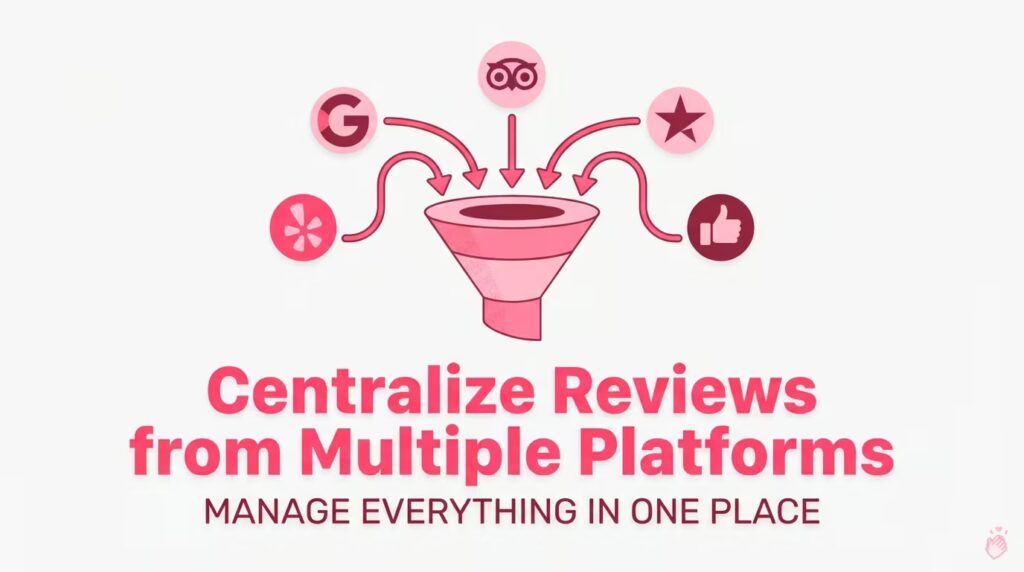
If you’re a business owner, your reviews probably aren’t just on Google. They’re scattered across Facebook, Yelp, Trustpilot, industry-specific sites, and more.
The challenge of managing reviews across platforms
A typical small business might have reviews on 5-10 different platforms. Logging into each one, checking for new reviews, and responding takes time. Important feedback slips through the cracks when you’re juggling multiple dashboards.
Use a review aggregator tool
Review aggregators pull reviews from multiple sources into a single dashboard. Instead of checking Google, then Facebook, then Yelp separately, you see everything in one view. Shapo, for example, imports reviews from Google and 20+ other platforms automatically.
Filter and organize reviews by source or rating
Once your reviews are centralized, you can filter by platform, star rating, or date. Want to see all your 5-star Google reviews? One click. Looking for negative Yelp reviews from the past month? Also one click.
Display Google reviews on your website
Benefits of embedding Google reviews
- Social proof where decisions happen: Visitors see real customer feedback right when they’re considering a purchase
- Fresh content: User-generated reviews add new content to your site without extra work
- SEO potential:Review schema markup can help search engines display star ratings in search results
Choose a Google review widget
Review widgets come in different formats—grids, carousels, badges, single featured reviews. The right choice depends on your website layout and how prominently you want reviews displayed. Shapo offers multiple layout options with a one-click Google connection, so you don’t have to hunt for API keys or Place IDs.
Customize your review display
Most widget tools let you filter which reviews appear (showing only 4-5 star reviews, for instance), style the widget to match your brand colors, and enable auto-sync so new reviews appear automatically.
Turn your Google reviews into a conversion tool
Shapo’s free plan lets you import Google reviews and display them on any website in minutes—no coding required.
Turn your Google reviews into sales
You now know exactly where to find your Google reviews—whether you’re tracking down reviews you’ve written, monitoring your business profile, or managing feedback across multiple platforms.
The next step is putting those reviews to work. Displaying authentic customer feedback on your website builds trust with visitors who are already interested in what you offer.
FAQs about finding your Google reviews
Why can’t I find my Google reviews in Google Maps?
Your reviews may not appear if you’re signed into a different Google account than the one you used to write them. Google also removes reviews that violate their policies (spam, fake reviews, inappropriate content), sometimes without notification. Try switching accounts or checking your email for any policy violation notices.
How long does it take for a new Google review to appear publicly?
Most Google reviews appear within a few minutes to a few hours. However, some reviews get flagged for automated quality checks and can take up to a few days. If your review hasn’t shown up after 72 hours, it may have been filtered out by Google’s spam detection.
Can I see who viewed my Google Business Profile reviews?
No, Google doesn’t provide analytics showing who specifically viewed your reviews. You can see overall profile view counts in Google Business Profile insights, but individual viewer data isn’t available.
How do I get notified when someone leaves a Google review for my business?
Turn on notifications in your Google Business Profile settings under “Notifications.” You can choose email or push notifications for new reviews. Alternatively, review management tools like Shapo can alert you when new reviews come in from any connected platform.
Can I download or export all my Google reviews at once?
Google doesn’t offer a native export feature for reviews. You can manually copy them, but that gets tedious with dozens or hundreds of reviews. Review aggregator tools like Shapo can import your Google reviews and let you manage them alongside reviews from other platforms.