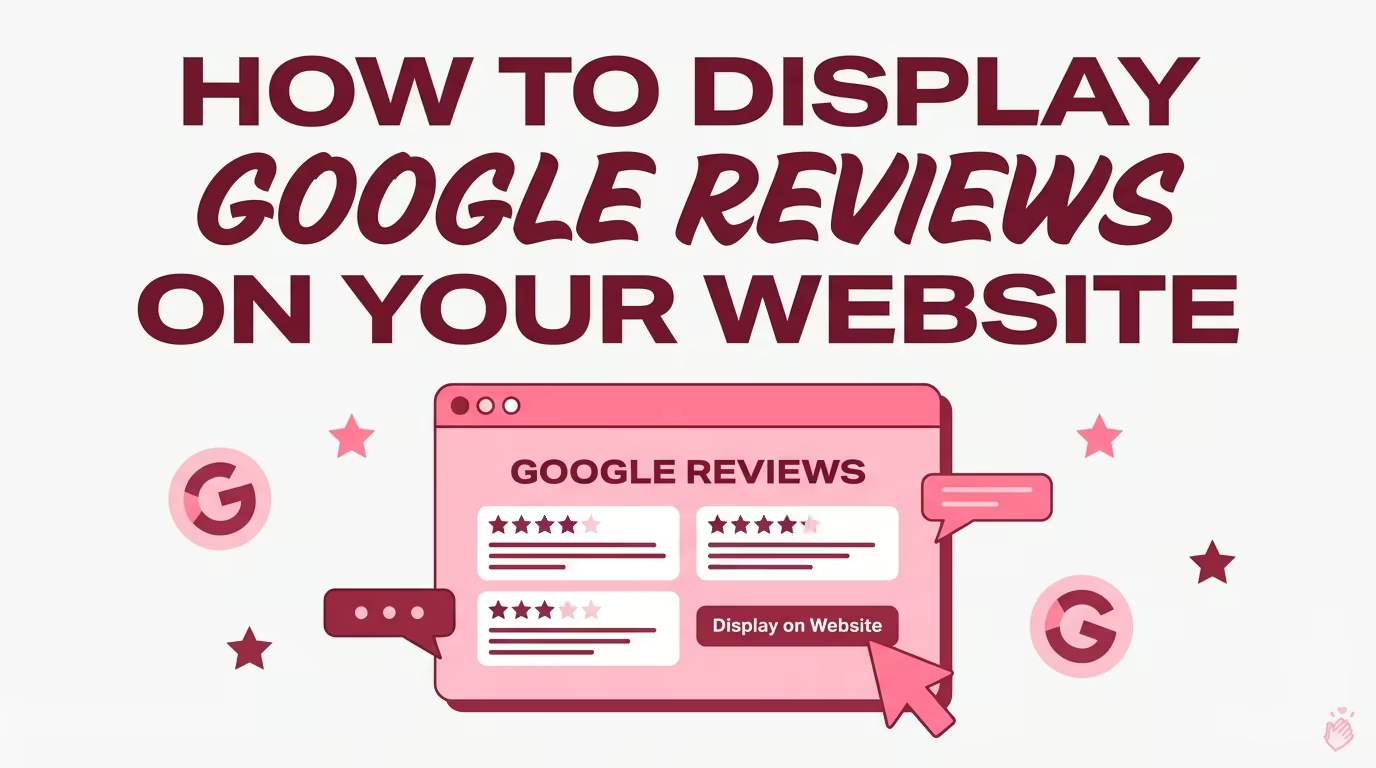
Your Google reviews are already shaping how potential customers see your business. The difference is whether those reviews are sitting on Google alone or working for you directly on your website.
Embedding reviews where visitors are making decisions turns passive social proof into an active trust signal. This guide walks you through exactly how to display Google reviews on your site, which tools make it easy, and the best practices that maximize impact.
Key Takeaways
- Trust & Conversions: 92% of consumers hesitate to buy without reviews; displaying them directly on-site builds immediate credibility.
- SEO Impact: Using review schema markup allows Google to display star ratings in search results, increasing click-through rates.
- Recency is Vital: 73% of consumers only trust reviews from the last 30 days, making auto-syncing widgets essential.
- Strategic Placement: Maximize impact by placing reviews near high-intent areas like pricing tables and checkout buttons.
- Automation: No-code widgets allow for seamless integration across WordPress, Shopify, and Webflow without manual updates.
Why showing Google reviews builds trust and drives conversions
Displaying Google reviews on your website builds immediate credibility, enhances SEO, and increases conversions by showcasing authentic customer experiences. When someone lands on your site and sees real feedback from real people, they’re far more likely to stick around, explore your offerings, and ultimately take action.
Google reviews shape visitors’ first impressions of your site
Here’s the thing: most visitors have already formed an opinion about your business before they scroll past your hero section. Research shows that 88% of consumers read Google reviews before choosing a business, and 81% specifically use Google to evaluate local options.
Your review profile acts as a trust filter. Positive, recent feedback signals that other people have taken a chance on you and been happy with the result. That kind of social proof is hard to replicate with marketing copy alone.
Fresh reviews show that your business is active and reliable
Recency matters more than you might think. Around 73% of consumers only trust reviews written in the last 30 days, and 83% say reviews need to be recent to feel trustworthy.
A business with dozens of glowing reviews from two years ago can actually raise red flags—85% of consumers consider 3-month-old reviews irrelevant.
Visitors start wondering: Is this place still open? Has quality declined? Keeping your displayed reviews fresh signals that your business is active, engaged, and consistently delivering good experiences right now.
Showing reviews can boost your conversion rate
There’s a direct link between visible social proof and purchase decisions. When a potential customer sees someone else describe exactly the problem they had and how your business solved it, that’s more persuasive than any marketing copy you could write.
Reviews do the selling for you. They answer objections, build confidence, and give hesitant visitors the nudge they need to move forward.
Review schema markup boosts SEO visibility and clicks
Schema markup is structured data you add to your website that helps search engines understand your content. When you include review schema, Google can display star ratings directly in search results, showing those eye-catching gold stars beneath your page title.
Pages with rich snippets tend to get higher click-through rates because they stand out visually. If you’re competing for local searches, those stars can be the difference between someone clicking your listing or your competitor’s.
What a review widget is for your website
A review widget is a small piece of code you embed on your website that automatically pulls and displays reviews from platforms like Google. Instead of manually copying and pasting individual reviews, the widget connects to your Google Business Profile and keeps your displayed feedback updated.
Here’s how the key terms break down:
- Widget: A code snippet you add to your site that displays reviews in a specific format (grid, carousel, badge, etc.)
- Google feed: The live stream of reviews from your Google Business Profile that the widget pulls from
- Embed: The process of adding the widget code to your website pages so reviews appear automatically
The main advantage of using a widget is automation. Once it’s set up, new reviews can sync automatically without any ongoing manual work.
How to embed Google reviews on your website for free
Getting Google reviews onto your website is simpler than most people expect. You don’t need coding skills, API keys, or developer help. Here’s a step-by-step walkthrough.
Step 1: Choose a no-code review widget tool
Look for a tool that offers a free plan, requires no technical setup, and lets you connect your Google profile with one click. Shapo’s Google Review Widget, for example, is free forever on the starter plan and works without needing a Google Place ID or API configuration.
Step 2: Connect your Google Business Profile
With the right tool, connecting your profile takes seconds. You simply search for your business name, select your listing, and authorize the connection. No copying IDs or navigating Google’s developer console.
Step 3: Select a review layout that fits your site
Most widget tools offer multiple display options:
- Grid: Shows several reviews in a structured layout, great for dedicated testimonial pages
- Carousel: Rotates through reviews one at a time, works well in sidebars or narrow spaces
- Wall of love: Displays many reviews in a masonry-style layout, ideal for social proof pages
- Single review: Highlights one standout review, useful near CTAs or pricing sections
- Badge: Shows your overall rating in a compact format, fits headers or footers
Choose based on where you’re placing the widget and how much space you have.
Step 4: Customize colors, fonts, and branding
A review widget that clashes with your site design looks like an afterthought. Most tools let you adjust colors, fonts, and styling so the widget feels native to your brand rather than bolted on.
Step 5: Copy the embed code and paste it on your website
Once you’ve configured your widget, you’ll get a small snippet of code. Copy it, then paste it into your website wherever you want reviews to appear. On most platforms, this takes under a minute.
Pro Tip: Test your widget on mobile before publishing. The majority of your visitors will view it on smaller screens, and a widget that looks great on desktop but breaks on mobile undermines the trust you’re trying to build.
How to display reviews on WordPress, Shopify, and Webflow
The embed process is nearly identical across platforms. You’re just pasting code into different editors. Here’s where to find the right spot on each.
WordPress
Paste the embed code into a Custom HTML block within the block editor, or add it to a widget area in your theme settings. If you’re using a page builder like Elementor, use an HTML element. See the full Google reviews on WordPress walkthrough for detailed steps.
Shopify
Add the code through the theme editor by editing your template files, or use an app block if your theme supports it. Product pages and the homepage are the most common placements.
Wix
Use the “Embed HTML” element in the Wix editor. Drag it to your desired location, click to edit, and paste your widget code.
Webflow
Add an “Embed” element to any page in the Webflow designer. Paste the widget code, then publish your site to see the changes live. The full Google reviews on Webflow guide covers additional customization options.
Squarespace
Use a “Code Block” in the page editor. Paste the embed code directly, and the widget will render when you save. The complete Google reviews on Squarespace guide covers the full process.
ClickFunnels, GoHighLevel, and other page builders
Most page builders include an HTML or embed element. The process is the same: find the element, paste your code, and save.
| Platform | Where to paste embed code |
|---|---|
| WordPress | Custom HTML block or widget area |
| Shopify | Theme editor or app block |
| Wix | Embed HTML element |
| Webflow | Embed element |
| Squarespace | Code Block |
| ClickFunnels/GHL | HTML element |
Best practices for displaying Google reviews to maximize trust
Simply adding a widget isn’t enough. Where you place it and how you configure it determines how much impact it has.
1. Place reviews near conversion points on your pages
- Near pricing sections
- Next to add-to-cart buttons
- Beside contact forms
- On checkout pages
- Within service descriptions
A review carousel next to your “Book Now” button can be the nudge someone needs to take action.
2. Use review moderation to highlight high-quality feedback
Most widget tools let you filter reviews by star rating or keywords. While showing only 5-star reviews might seem tempting, Northwestern’s Spiegel Research Center found purchase likelihood actually peaks at 4.0–4.7 stars, so a mix of 4- and 5-star feedback often appears more authentic. Focus on displaying reviews that are detailed, specific, and relevant to what visitors are looking for.
3. Keep your Google feed fresh with auto-sync
If your widget only shows reviews from six months ago, visitors may question whether your business is still delivering the same quality. Auto-sync features automatically pull in new reviews so your display stays current without manual updates.
4. Add a call-to-action to encourage more reviews
Consider placing a “Leave us a review” button near your displayed reviews. This creates a feedback loop: visitors see social proof, become customers, and then contribute their own reviews.
5. Match the widget design to your brand
A widget that looks out of place can actually hurt trust. Take the time to customize colors, fonts, and styling so reviews feel like a natural part of your site rather than a third-party add-on.
How to improve your Google reviews and strengthen social proof
Displaying reviews only works if you have reviews worth displaying. Here’s how to generate more high-quality feedback.
1. Ask customers for reviews at the right moment
Timing matters. The best moments to request a review include:
- Right after a successful purchase or service completion
- Following a positive customer support interaction
- When a customer gives verbal praise or a referral
- At the end of a project milestone
Asking too early (before the customer has experienced your product) or too late (when the experience has faded from memory) reduces response rates.
2. Make leaving a review simple with direct links
Create a direct Google review link and share it everywhere: email signatures, receipts, follow-up messages, and thank-you cards. The fewer clicks required, the more reviews you’ll receive.
3. Respond to every review promptly and professionally
Responding to reviews, both positive and negative, shows you value customer feedback. For negative reviews, a thoughtful response demonstrates accountability and can actually build trust with future visitors who see how you handle problems.
Around 97% of people who read reviews also read business responses, so your replies are part of your public reputation.
Key features to look for in a Google review widget
- No-code setup: Connect your Google profile with one click without needing API keys or developers.
- Flexible Layouts: Choose between grid, carousel, wall of love, or badges to match your page design.
- Review Moderation: Filter by star rating to ensure only high-quality, relevant feedback is displayed.
- Schema Markup: Built-in structured data to help your site earn gold stars in Google search results.
- Auto-sync: Automatically pull in new reviews to keep your social proof fresh and trustworthy.
- Performance Optimized: Lightweight, asynchronous code that won’t slow down your page load speed.
How to add Google reviews to your website without a widget
If you prefer not to use a third-party tool, you have a few alternatives, though they come with trade-offs.
Embed a Google Maps widget with your business listing
Google Maps embeds display your location along with your reviews. Customization is limited, and you can’t filter which reviews appear, but it’s free and native to Google.
Share a direct link to your Google reviews
Add a button on your site that links directly to your Google reviews page. Visitors click the button and view your reviews on Google itself. This approach is simple but takes visitors away from your site.
Add a Google review badge to your site
Some tools offer badge-style embeds that show your overall rating in a compact format. These work well in headers or footers where space is limited.
Start displaying Google reviews and build trust today
Your Google reviews are already influencing potential customers. The question is whether those reviews are visible on your website where they can do the most good.
Adding a review widget takes minutes, requires no technical skills, and can meaningfully improve how visitors perceive your business. With the right tool, you can connect your Google Business Profile, customize the display to match your brand, and embed reviews on any page.
Sign up for free and embed your first Google review widget in minutes.
FAQs about displaying Google reviews on your website
How do I display reviews from multiple Google Business locations on one website?
If you manage multiple Google Business Profiles (for example, different storefronts or service areas), the easiest way is to connect each location to your review widget tool and then choose whether to show them separately or together.
- Connect each location: In your widget dashboard, search for and connect each Google Business Profile you want to use.
- Choose your display setup: Create one widget per location (for location-specific pages) or create a single widget that combines reviews from the any of the locations into one feed.
- Select your layout: Pick a grid, carousel, wall of love, or badge depending on where you’ll place the reviews.
- Copy the embed code: Generate the widget code for each widget you created.
- Embed on the right pages: Paste each code snippet into the corresponding location page (or paste the merged widget on a global testimonials page), then publish.
Can I add Google reviews to my website for free without coding?
Yes. You can use a no-code Google review widget that lets you connect your Google Business Profile and generate an embed code to paste into your site. For example, Shapo’s Google Review Widget is free forever on the starter plan, so you can display reviews on your website without writing code or hiring a developer.
How often do new Google reviews appear on my site after someone posts one?
It depends on your widget provider and whether auto-sync is enabled. With auto-sync, new reviews typically appear after the widget refreshes—often several times a day—so your on-site social proof stays current without manual updates.
Do I need a Google API key or Place ID to embed reviews?
Not always. Some tools require an API setup, but no-code widgets can connect directly to your Google Business Profile without you needing to find a Place ID or configure a Google API key. Shapo, for instance, works through a simple business search and one-click connection.
What’s the easiest way to get more Google reviews to show on my site?
The easiest way is to make leaving a review fast and consistent, then keep the momentum going with responses.
- Send a direct review link: Share your Google review link in follow-up emails, receipts, and SMS messages so customers can leave feedback in a couple of clicks.
- Ask at the right moment: Request reviews right after a successful service, delivery, or support interaction—when satisfaction is highest.
- Reply to every review: People notice how you respond—around 97% of people who read reviews also read business responses—so consistent replies can encourage more customers to contribute.
How many Google reviews should I display on my website?
There’s no fixed rule. A carousel of 5–10 recent, high-quality reviews typically provides enough social proof without overwhelming the page. For dedicated testimonial pages, you can display more.
Can website visitors tell if I have filtered out negative reviews?
Visitors can’t see which reviews you’ve excluded. However, displaying only perfect 5-star reviews can appear less authentic. 82% of shoppers actively seek negative reviews to establish credibility, so a mix of 4- and 5-star feedback often builds more trust.
Do embedded Google reviews count as duplicate content for SEO?
No. Google understands that embedded reviews are user-generated content and doesn’t penalize sites for displaying them.
Can I display Google reviews if my business does not have a physical address?
Yes. As long as you have a Google Business Profile, you can connect it to a review widget regardless of whether your business has a storefront.
Will displaying Google reviews slow down my website?
Quality widgets load asynchronously, meaning they don’t block your page from rendering. Choose a lightweight tool to avoid performance issues. Shapo’s widget, for instance, is designed to load without impacting page speed.