Leaving a Google review usually means your full name shows up right next to your feedback, which isn’t ideal when you’re reviewing your therapist’s office or calling out a bad experience at a local business where the owner knows you by name.
Google now lets you post reviews under an alias instead of your real identity. This guide walks you through setting up a custom display name, posting anonymous reviews on desktop and mobile, and understanding what “anonymous” actually means when Google is involved.
Can you leave an anonymous Google review?
Yes, you can leave a Google review without showing your real name. As of November 2025, Google allows users to create a custom display name and profile picture, so your review appears under an alias rather than your actual identity.
Here’s what “anonymous” actually means in this context: you’re using a pseudonym that other users and businesses see, but Google still knows who you are internally. Your account information, IP address, and review history remain linked to your profile. True anonymity (where no one can identify you, including Google) isn’t possible when leaving a Google review.
For most people, though, this level of privacy works perfectly well. Businesses and other reviewers only see your chosen alias, not your real name or email address.
Why people leave anonymous Google reviews
Privacy and personal safety concerns
Some businesses involve sensitive topics, such as medical providers, legal services, mental health professionals. Leaving a review under your real name can feel uncomfortable or even risky in these situations, especially since 73% of respondents are concerned about the safety and privacy of their online data.
Avoiding confrontation with business owners
Local businesses often know their customers personally. If you had a negative experience at your neighborhood restaurant or salon, you might worry about awkward encounters or potential pushback from the owner.
Sharing honest feedback without social pressure
Sometimes you simply want to give candid feedback without friends, family, or colleagues seeing your name attached to a critical review. An alias removes that social friction entirely.
How to Leave an Anonymous Google Review
This is the primary method for leaving anonymous Google reviews. Google’s custom name feature lets you create an alias that appears on all your future reviews without affecting your actual Google account name.
Step 1. Open Google Maps and sign in
Navigate to maps.google.com on your browser or open the Google Maps app on your phone. Make sure you’re signed into the Google account you want to use for reviews.
Step 2. Access your profile settings
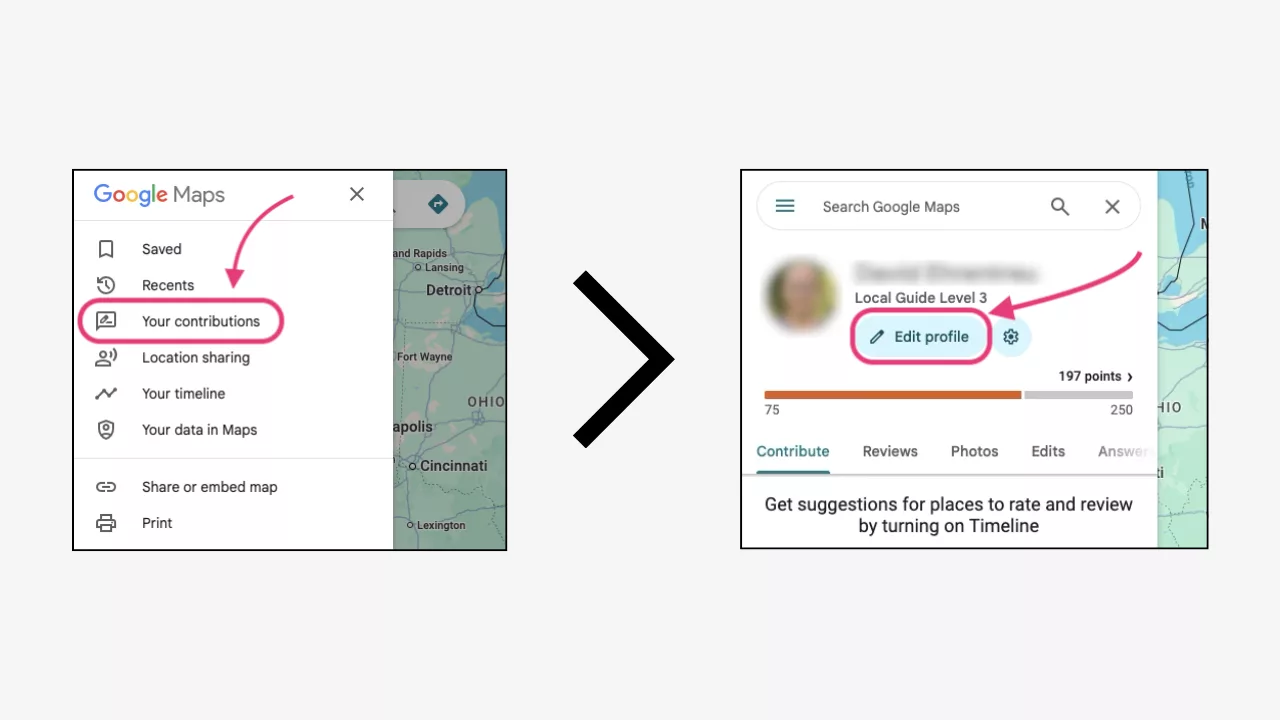
Click the Menu icon (the three horizontal lines) in the top-left corner of the screen. Select “Your contributions” from the list, and then click the button labeled “Edit profile.”
Step 3. Select custom name and picture
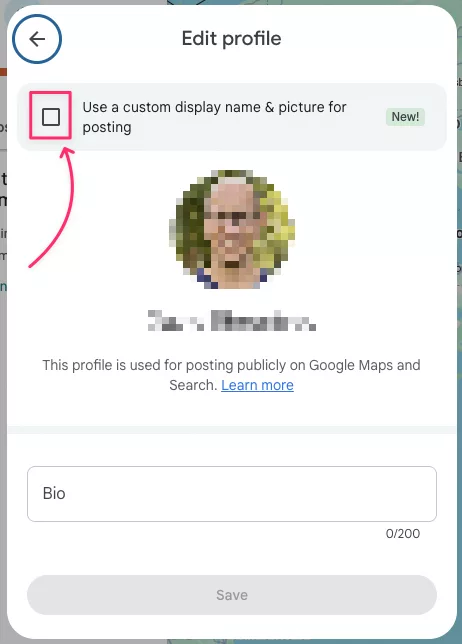
Find and check the box next to “Use a custom display name & picture for posting.” (Note: If you ever want to revert to your original Google Account name, you can return here and uncheck this box).
Step 4. Enter your alias and Picture
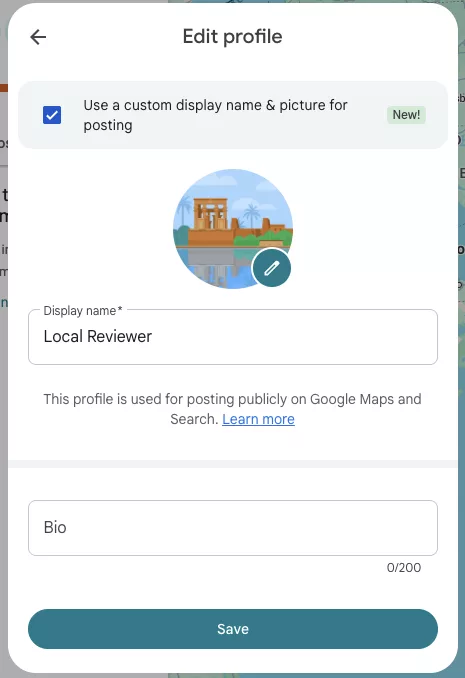
– To edit your name: Enter your chosen pseudonym in the “Display name” field.
– To edit your picture: Click “Edit” on the profile picture icon. You can select an image from “Illustrations,” “Google Photos,” or upload one “From computer.”
Step 5. Confirm your changes
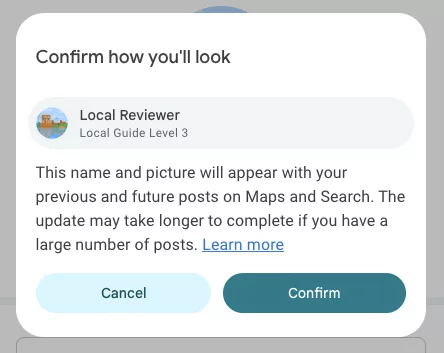
Once you are satisfied with your new persona, click “Next” and then “Confirm” to finalize the update. Your custom name and picture will now be shared across Google Maps and Search.
Pro Tip: Choose a generic alias like “Local Reviewer” or “Happy Customer” rather than something that hints at your identity. Avoid nicknames your friends might recognize.
How to leave an anonymous Google review on desktop
Once your alias is set up, posting a review takes just a few clicks.
Step 1. Search for the business on Google Maps
Go to Google Maps and type the business name in the search bar (or use a Google review link generator to find the business faster). Click on the correct listing from the results.
Step 2. Click write a review
On the business profile, scroll down to the reviews section. Click the “Write a review” button which is usually near the star rating summary.
Step 3. Add your star rating and written feedback
Select your star rating first, then write your experience in the text box. Be specific about what happened: mention the service you received, the date if relevant, and what made the experience positive or negative.
Step 4. Submit your anonymous review
Click “Post” to publish your review. It now appears under your alias, visible to the business and other users while your real name stays hidden.
How to leave an anonymous Google review on mobile
The mobile process mirrors the desktop experience closely.
Step 1. Open the Google Maps app
Launch Google Maps on your iOS or Android device. Sign in if prompted.
Step 2. Find the business profile
Use the search bar to locate the business you want to review. Tap on the listing to open its full profile.
Step 3. Tap the reviews section and write a review
Scroll to the “Reviews” section and tap “Write a review” or the star rating prompt that appears.
Step 4. Post your review anonymously
Add your star rating and written feedback, then tap “Post.” Your review publishes under your custom display name.
How to write a Google review without signing in
You cannot write a Google review without a Google account—this is a firm requirement. Google ties every review to an authenticated account to reduce spam and fake reviews—the platform blocked or removed more than 240 million policy-violating reviews in 2024 alone.
If you want to leave feedback without using your primary account, you have a few options:
- Create a secondary Google account: Set up a new account with a pseudonym specifically for review purposes. Use a different email address that doesn’t contain your real name.
- Use Google’s alias feature: This is the preferred method since it doesn’t require managing multiple accounts. You keep one account but display a different name.
- Third-party review platforms: Some sites like Yelp or Trustpilot have different anonymity policies, though reviews posted there won’t appear on Google.
What to do if you cannot see the alias option
Not everyone sees the custom name feature immediately. Here’s how to troubleshoot.
Update your Google Maps app
Older app versions may not include this feature. Visit your device’s app store and check for updates. Install the latest version and restart the app.
Check for regional availability
Google rolls out features gradually across different regions. If you’re in a location where the feature hasn’t launched yet, you may need to wait.
Wait for the feature rollout to your account
Even within the same region, Google stages releases to different accounts at different times. If the option isn’t available today, check back in a few weeks.
Can an anonymous Google review be traced?
Yes and no, it depends on who’s doing the tracing.
| Who | What they can see |
|---|---|
| Your full account info, IP address, review history, and device information | |
| Business owners | Only your alias and review content—no email, real name, or contact details |
| Other users | Only your alias and public profile |
For practical purposes, businesses cannot identify you from an anonymous review. However, if you include specific details in your review text, like “I came in last Tuesday at 3pm for my appointment with Dr. Smith”, you might inadvertently reveal your identity.
Do anonymous Google reviews still count?
Absolutely. Reviews posted under aliases carry the same weight as reviews under real names. They count toward the business’s overall star rating, appear in search results, and influence potential customers just like any other review.
Google doesn’t flag, penalize, or treat alias reviews differently. The platform cares about authenticity of experience, not whether you use your legal name.
Google policy on anonymous reviews
Using an alias is perfectly acceptable under Google’s guidelines, but your review still needs to follow their content policies.
Authentic experience requirement
Your review has to reflect a genuine experience with the business. Fake reviews, whether positive or negative, violate Google’s terms regardless of whether you use your real name or an alias.
Conflict of interest rules
You cannot review your own business or a competitor’s business, even anonymously. Google’s systems are designed to detect patterns that suggest conflicts of interest.
Prohibited and fake review guidelines
Spam, hate speech, harassment, and false claims will get your review removed. Anonymous doesn’t mean unaccountable and Google can still take action against your account if you violate their policies.
Best practices for leaving anonymous Google reviews
A helpful review protects your privacy while still providing value to other consumers and the business.
Be specific about your experience
Describe what service you received and what happened. Vague reviews like “Great place!” or “Terrible service” don’t help anyone make informed decisions.
Stay respectful and constructive
Focus on the experience, not personal attacks on individuals. Even negative reviews can be professional and factual.
Include relevant details like dates and services used
Adding context like “I visited in January 2026 for a haircut” makes your review more credible without necessarily revealing your identity.
Avoid personally identifiable information
Don’t mention your name, specific appointment times that could identify you, or unique circumstances that only apply to you. Keep the focus on the service quality.
How do anonymous reviews impact businesses?
Understanding the business perspective helps explain why reviews (both anonymous or not) matter so much.
Effect on star ratings and online reputation
Every review affects the overall rating. A business with 4.2 stars versus 4.5 stars can see meaningful differences in customer traffic. Anonymous reviews contribute to this calculation equally.
Influence on local SEO and search rankings
Google factors review quantity, quality, and recency into local search rankings. More reviews generally mean better visibility in “near me” searches and Google Maps results.
Why businesses should encourage all reviews
Smart businesses welcome all authentic feedback because more reviews mean more social proof. According to industry data, consumers are willing to pay 22% more for a business with a good online reputation. Whether a customer uses their real name or an alias, that review helps build trust with future customers.
Collect and display Google reviews on your website
For business owners reading this: anonymous reviews on Google still represent valuable social proof you can leverage. Google review widgets let you import reviews (including those from anonymous reviewers) and showcase them directly on your website.
- One dashboard for everything: Pull in reviews from Google, social media, and other platforms without switching between tabs
- No developer required: Embed review widgets on your site with a simple copy-paste code
- Brand-consistent design: Customize how reviews appear to match your website’s look and feel
FAQs about anonymous Google reviews
Can businesses see my real name behind an anonymous Google review?
No. Business owners only see your display name (alias) and the content of your review. Google keeps your account information, email address, and real name private from business owners and other users.
Is leaving an anonymous Google review against Google’s rules?
No. Google officially supports custom display names as of November 2025. Using an alias is within their terms of service as long as your review reflects a genuine experience and follows their content policies.
Will my old Google reviews update to show my new alias?
No. Previously posted reviews keep the name you used at the time you wrote them. Only new reviews display your alias. If you want older reviews to appear anonymous, you’d need to delete and repost them.
Can I change my Google review alias back to my real name later?
Yes. You can edit your profile settings anytime to switch between your real name and a custom alias. The change applies to future reviews only.
Is reporting a Google review anonymous?
Yes. When you flag a review as inappropriate, the business owner and the reviewer cannot see who reported it. Google handles the review process internally.
Can you make your Google reviews private?
No. Google reviews are public by default and cannot be made visible only to you. Your options are to keep a review published, edit it, or delete it entirely—but there’s no private or hidden setting.